Shadowrocket Download
Verify on the App Store
A paid app with a one-time purchase, available only on the App Store. First check the storefront and verify the app, then complete your purchase. This page covers purchasing and restoring the app; see the getting started guide for connection setup.
- App ID 932747118
- US price $2.99 one-time purchase
- For iPhone and iPad
- Also available on the Mac / Apple TV storefront
Actual pricing, compatibility, and system requirements are listed on the App Store page. Buying the client does not include a service subscription.
Storefront region determines app availability
Shadowrocket is not currently available on the mainland China App Store. If you can’t find it, first check the country or region of the Apple ID used for App Store purchases. Don’t rely only on your device’s location, system language, or search input. The App Store displays apps available to the current purchasing account’s storefront. Opening the product page in a browser does not mean your device’s purchasing account is set to that storefront.
The button on this page links to the same Shadowrocket App Store product page. Your browser may show the webpage first, then open it in the App Store on your device. Eligibility to purchase still depends on your current storefront and account status. If you see a message that the app isn’t available in your country or region, check your account details rather than repeatedly searching under different app names. Store availability may change; the App Store page is the source of current information.
Check your Apple ID country or region
- Open Settings on your device, then tap the Apple ID account area at the top.
- Tap Media & Purchases, then View Account. Complete any identity verification requested by the system.
- Open Country/Region to see your current storefront. To find the region-change option, tap Change Country or Region.
Check the account used for Media & Purchases. It may differ from the account used for other Apple services on your device. Use the account shown on the page. Labels for account settings may vary slightly by system version; look under purchasing account details rather than changing your device’s language or region settings.
If the product page is available but payment hasn’t gone through, first address the payment or account message shown by the App Store. Purchasing the app and setting up an in-app connection are separate steps: the store handles the purchase, while connections depend on authorization and configuration you already have after installation. Identify which step failed before troubleshooting so you don’t mistake a store issue for a connection issue.
IDENTITY / 932747118
Developer, official icon, and app ID
Check the app’s identity on the store before purchasing, then compare it with the actual interface after installation. Matching names alone don’t mean two products are the same.
Check these three details one by one
First, check the developer name. On the App Store product page, look for the developer or provider; it should be Shadow Launch Technology Limited. Don’t rely on the search result title alone: search results may include apps with similar names. Open the product page to verify the full details. If the developer name is truncated, expand the information section to see it in full.
Second, check the official icon. Shadowrocket’s icon is a rocket outlined in blue and purple on a white background, matching the official icon shown on this page. The icon helps you identify the app but does not replace checking the developer and app ID. Don’t assume a search result is the same product just because it has a similar image or name.
Third, check the app ID. The correct product page URL ends in id932747118, and the app ID is 932747118. Open the product page using the main button on this page, then check the number in your browser’s address bar. All three details should match. If any one doesn’t, stop before purchasing and check the page again.
Official screenshots help identify the interface
The two images alongside this text are official App Store screenshots showing Home and Add Server. Home shows Not Connected, Global Routing, Connectivity Test, the SERVER group, and Add Server. Add Server shows fields such as Type, Host, Port, Password, and Method, along with the Scan QR Code and Import from Cloud JSON options.
The screenshots illustrate the interface; they are not connection details you can use. The installed app may look different depending on your device, language, app updates, and existing configuration. An English interface or a change in button placement does not by itself indicate that the app is inauthentic. Verify the app using the three App Store details above, and follow the interface shown on your device for specific steps.
If the app is installed but you’re unsure of its identity, go to your App Store purchase history and open the corresponding product page to verify the developer and app ID. Don’t buy similarly named apps just to compare their appearance. After verifying the app, follow the getting started guide to set up a connection using subscription or server details you already have.
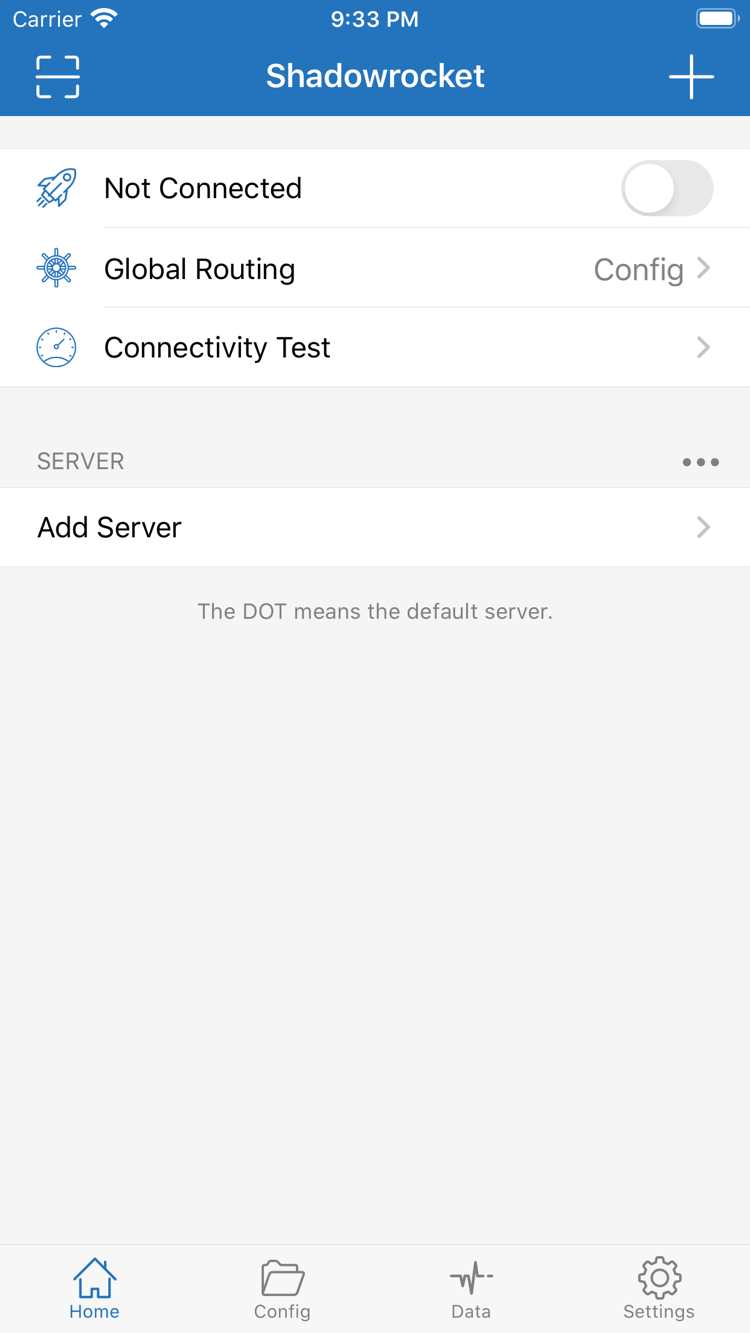
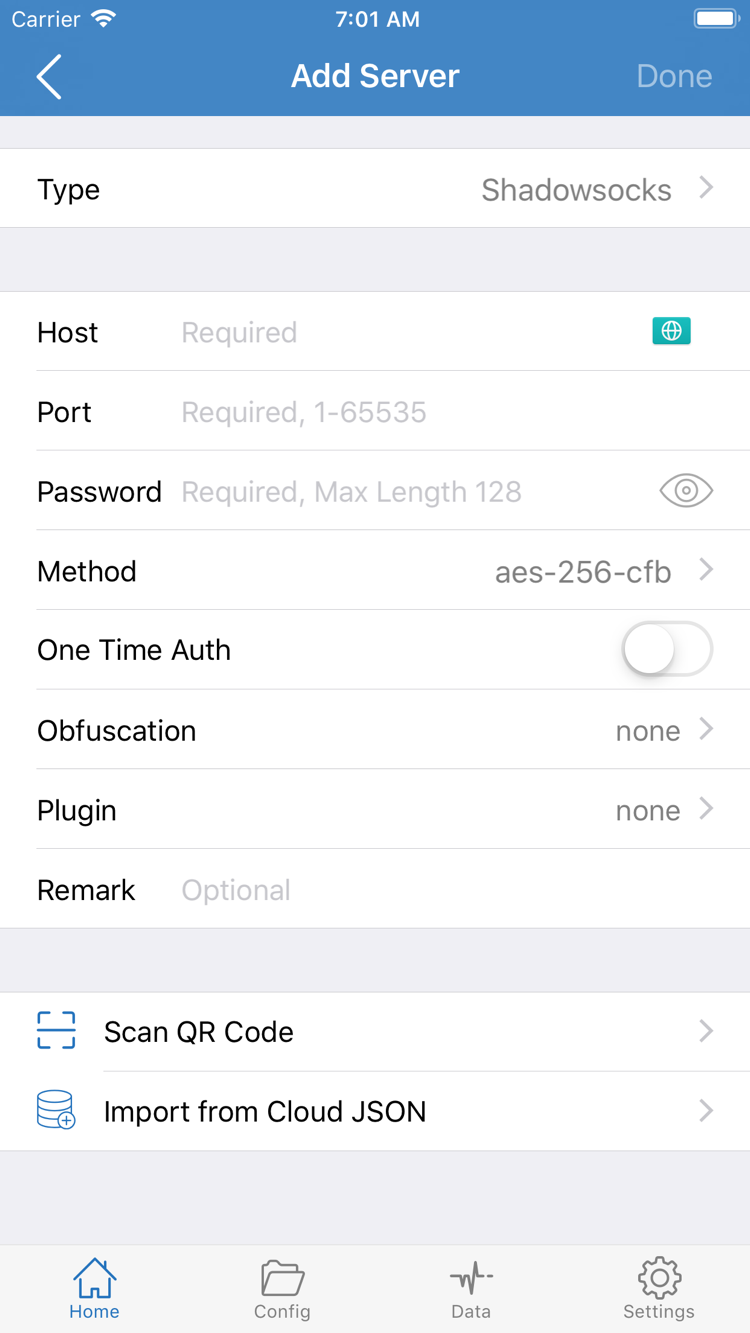
Purchasing, installing, and authorizing Shadowrocket on iPhone
On your iPhone, tap the main App Store button on this page. Verify the three product details and storefront price, then follow the system prompts to complete your purchase. Installation compatibility depends on the requirements listed under Compatibility on the product page. Check the App Store page for system requirements; don’t rely on system version numbers in an older guide to decide whether your device is supported.
After purchase, wait for the App Store to show installation progress and then Open. If progress stalls, check for a payment confirmation, network connection, or storage message. The App Store manages the download. Global Routing and server settings in Shadowrocket aren’t involved yet, so changing in-app settings won’t resolve an issue at the store download stage.
Opening the app doesn’t establish a connection
When Home opens, first import your own subscription or server details, then check the selected item and Global Routing. Config applies the rules in your configuration; Proxy and Direct are two other routing options. Choose based on what your configuration is for rather than treating one mode as the default answer. If you don’t have connection details, purchasing and installing the app won’t automatically provide a working connection.
When you first enable a connection, the system may ask to allow Shadowrocket to add a VPN configuration. This system authorization is needed to manage network connections and is separate from App Store purchase verification. Confirm that the request was triggered by the Shadowrocket you just installed, then follow the system prompts. Authorization is only one step; you still need correct server details and a working network. Authorization success alone doesn’t mean the remote connection is working.
If you previously denied authorization, return to the app and try connecting again, paying attention to the system prompt. If you deleted the corresponding configuration in system settings, use the app to request authorization again. If the connection fails, check the status on Home, then use Connectivity Test to help diagnose the issue. For an explanation of the system prompt, see About the Add VPN Configuration prompt. Keep authorization issues separate from purchase account issues.
Restore a purchase on iPad and use other Apple devices
Shadowrocket is available for iPhone and iPad. After purchasing with an Apple ID, you can redownload it from Purchased on another device that meets the compatibility requirements. Before installing on iPad, confirm that Media & Purchases is signed in with the original purchasing account. Don’t rely only on the name or photo shown at the top of the device.
The iPad’s larger screen may change the layout, list width, or placement of options compared with iPhone screenshots. You can still find your way using interface labels such as Home, Add Server, and Config. Follow the labels on your device rather than matching every screenshot detail. Check the App Store page for iPad system requirements and compatibility before purchasing.
Check purchase history and connection settings separately
Restoring the app with the purchasing account does not automatically transfer the same configuration to another device. After installation, check whether the details you need are already there. If not, import a subscription or server details you saved yourself. To enter them manually, check the fields for the selected Type in Add Server. Don’t treat example field values in official screenshots as actual configuration details.
When using multiple devices, check system authorization, Global Routing, and the selected configuration on each one. A working connection on one device only confirms that its configuration and network worked at that time; it doesn’t replace checking another device. Connection details may include access credentials. Store them securely, and hide passwords and complete subscription URLs before sharing screenshots for help.
Restore purchases after changing devices or reinstalling
When you get a new device, restore the app purchase first, then restore your connection details. Using the original purchasing Apple ID, find Shadowrocket under App Store → Account → Purchased. Depending on your system version, the section may be called Apps or My Apps. Tap the redownload icon next to the app. If you’re eligible to restore the purchase, you won’t need to pay again.
If the search result still shows a price, don’t pay again right away. Check whether Media & Purchases is signed in with the account used for the original purchase, then check your purchase history for the transaction. Your sign-in status for other Apple services doesn’t confirm which App Store account you’re using. If you’ve changed storefront regions, also check the app’s availability and redownload eligibility in the current storefront.
Check in this order: account → purchase history → device
- Confirm the account used for purchases in the current storefront. If needed, compare it with your saved purchase records.
- Find the full app name under Purchased, then verify the developer and app ID again.
- Check compatibility on the target device, available storage, and the exact App Store message before trying to download again.
- After installation, import your own subscription or server details and complete any required system authorization again.
Before deleting the app, make sure you’ve safely saved your existing configuration. A purchase record confirms your eligibility to get the app; it isn’t a configuration backup. Whether your previous details can be restored after reinstalling depends on how you saved them and the actual restore result. Don’t make deleting and reinstalling your first step when a connection fails unless you have a backup.
Family Sharing depends on store support and account eligibility
To see whether Family Sharing applies, check the support information on the App Store page and your Family Sharing purchase-sharing settings. Whether family members can see the app also depends on storefront region, account status, and Apple’s current rules. Restoring a purchase with the same Apple ID is different from sharing a purchase across family members’ accounts; eligibility requirements differ.
After restoring the app, check the selected configuration and connection status on Home before troubleshooting further. If the App Store installation is complete but the connection still fails, focus on whether your existing details are valid, protocol fields, system time, and network status. Follow the connection troubleshooting checklist to check each item and avoid buying the app again for the same connection issue.
What the one-time purchase covers—and what it doesn’t
Shadowrocket is a paid commercial app with a one-time purchase; there is no monthly fee for the client. The US reference price is $2.99. Other storefronts show prices in local currency; actual pricing and purchase requirements are listed on the App Store page. Check the confirmation screen before paying, and don’t compare displayed numbers in different currencies as if they were the same amount.
So if Home has no server entries after a successful purchase, that doesn’t mean anything went wrong with the order. The app reads and uses details you provide. Whether your existing subscription is valid, the server is reachable, and your credentials are correct are all connection-related questions. If a service you already use requires renewal, that’s governed by the service itself and isn’t part of the one-time client purchase.
Updates are managed through the App Store. To check update history, compatibility, or the current price, return to the same product page rather than relying on old screenshots or figures in older articles. A one-time purchase doesn’t guarantee compatibility with every future device; check the requirements for your target device before upgrading.
After purchasing, follow this order: confirm installation, prepare connection details you already have, import them using the getting started guide, then check Global Routing and system authorization. For questions about your purchase account, storefront region, or restoration eligibility, read the App Store access guide. Don’t try to fix a connection issue by paying again.
Download and purchase FAQs
Why can’t I find Shadowrocket on the mainland China App Store?
Shadowrocket is not currently available in the mainland China storefront. The country or region associated with your Apple ID determines which store content you can see; your device language does not change your storefront. Check under Settings → Apple ID → Media & Purchases → View Account → Country/Region. Availability is as shown on the App Store page.
The product page opens, but the app won’t download. What should I check first?
Note the exact App Store message, then check the account under Media & Purchases, storefront region, payment status, device compatibility, and available storage. If you can’t download it from Purchased either, try again on a different working network. Check the App Store page for system requirements, and don’t confuse a store download issue with an in-app connection issue.
Do I have to pay again when I get a new iPhone or reinstall the app?
Using the Apple ID that made the purchase, find Shadowrocket under App Store → Account → Purchased and download it again. You usually won’t need to pay again. If a price still appears, check the purchasing account and purchase history before trying to pay again. After reinstalling, you’ll also need to import your own subscription or server details.
Can I install it on my iPad after purchasing?
Shadowrocket is available for iPhone and iPad. After purchasing with the same Apple ID, you can redownload it from Purchased on a compatible iPad. The interface may look different on iPad; check the App Store page for system requirements. You’ll still need to import your own connection details.
Can I install it on Mac, Apple TV, or Apple Vision?
The compatibility section on the same App Store product page lists Mac, Apple TV, and Apple Vision. Check the App Store on your device for availability. Universal purchase support and system requirements are as listed on the App Store page; the App Store remains the place to get the app.
How do I follow the guide when the app is in English?
Use the interface labels to find your way: Home shows connection status; Add Server is where you enter server details you already have; Global Routing lets you check Config, Proxy, or Direct; and Connectivity Test checks reachability. This guide keeps these labels in English. An English interface does not verify an app’s authenticity; check the developer, official icon, and app ID.